cda cda cda cda
cda cda cda cda
cda cda cda cda
cda cda cda cda
cda cda cda cda
cda cda cda cda
cda cda cda cda
cda cda cda cda
cda cda cda cda
cda cda cda cda
cda cda cda cda
cda cda cda cda
cda cda cda cda
cda cda cda cda
cda cda cda cda
cda cda cda cda
cda cda cda cda
cda cda cda cda
cda cda cda cda
cda cda cda cda
cda cda cda cda
cda cda cda cda
cda cda cda cda
cda cda cda cda
cda cda cda cda
Establishing Your Password on a Macintosh |
 |
The detailed way for first time users |
Ah, the friendly little industrious Macintosh in all its blue-and-white glory.
Peeps coming from
a Windows world might think, "what-how do i-where-what the-dammit-how do i
ctrl-alt...."
Sorry, no start buttons here (at least not without GoMac)
and you don't even have to use CTRL-ALT-DELETE but the Apple menu and
menu bar is just as nice and comforting.
Step 1:
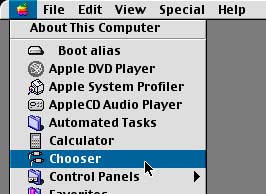
Start by going to the Apple menu and then selecting Chooser.
Step 2:
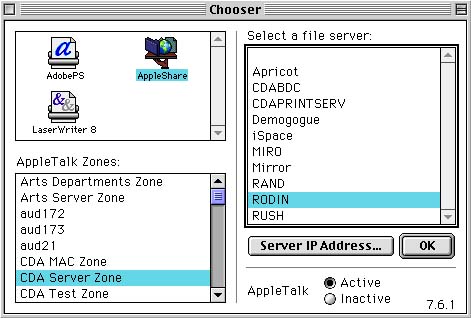
Click to highlight Appleshare, CDA Server Zone, and RODIN
(pronounced "ro-DAN", not "ROD-in"). Then click OK.
Step 3:
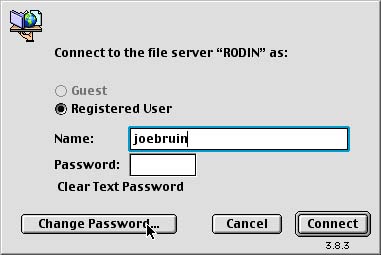
Enter your username and leave your password blank. Your username is the same
as your Bruin Online account username. Click on Change Password.
Step 4:
Leave the Old Password line blank. Input a new password. Passwords
are case-sensitive so don't throw in capital letters and weird characters.
Keep it personal and simple and easy to remember at the same time.
The password should be between 5-8 characters. It should include numbers
and letters, but cannot contain the '@' symbol.
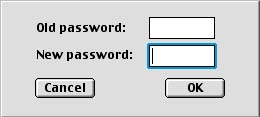
Step 5:
You'll be asked to confirm (retype) your new password. Click OK, and
then....
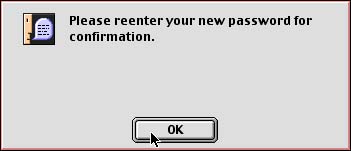
....go ahead and
type it in again.
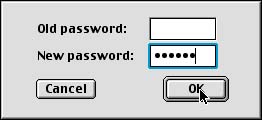
A successful login
will bring up this window:
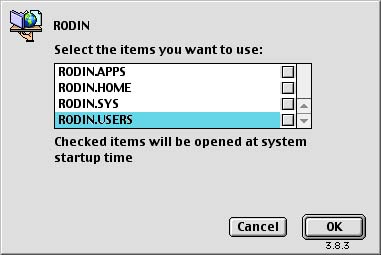
If you don't get
the above window and you've followed the above steps exactly, then you can
go ask one of the consultants nicely.
You'll usually select Rodin.Users to access your server space to store
and retrieve files.
There's one more
thing you have to do before we're done with Password-Establishing-Fun and
that's logging onto the server Miro. Click on Cancel in the Rodin window
and go back to the Chooser window.
Step 6:
Select Appleshare, CDA Server Zone, MIRO like this:
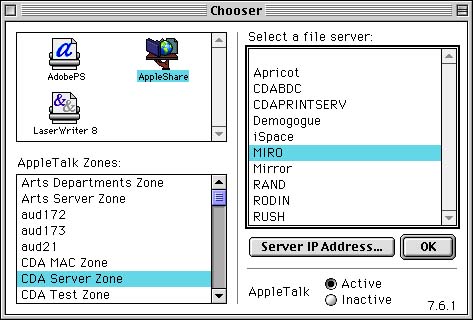
...and follow Steps 3 through 5 again.
Now you're set and ready to party.
Hey! Take
me back to the index!!!