Introduction to Computer-aided Architectural Design
Brief Manual of Page Maker
DeskTop Publishing (DTP) is a series of techniques for integrating text
and images into a printable document. Newspapers, magazines, advertisment
companies use desktop publishing to communicate information to their clients.
Architects can find DTP very useful in presenting future projects to their
clients, creating portfolios, and putting together advertisment brochures
for their businesses.
PageMaker is a program that allows one to put together images and
text in a simple way in one document.
Getting Started
Double-click on the PageMaker application.
Select New from the file menu. A dialogue box will appear:
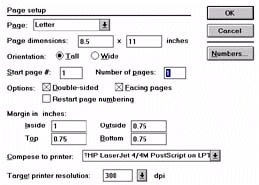
Make the proper selections (page size, margins, double-sided, tall/wide,
etc.)
Click OK.
You will be presented with a page layout.
Importing Images and Text
Select the Place... command from the File menu:
Select the file (Photoshop, Word Perfect, Microsoft Word, etc.) you want
to bring in.
Parts of text:
If you want to bring parts of a file, for example excerts from a text document
(and not the whole text file) open the word processor application, select
the text you need, select Copy from the Edit menu, go back to PageMaker
and select Paste. The text should appear as a block.
Part of images from Photoshop
Open Photoshop and select the part of the image. Then select Copy
from the Edit menu, go into Pagemaker and select Paste from
the Edit menu. (If you get an error message copy the image from photoshop,
then paste it into Word, then copy it from Word and paste it into PageMaker.
In other words, use Word as a middleman)
Text from Netscape (or any other text document)
Open Netscape,
select the text you want,
select Copy from the Edit menu,
goto PageMaker and
select Paste from the Edit menu.
Screen Capture
To capture areas of the screen double-click on the ScreenCapture
application in the ImagePals folder.
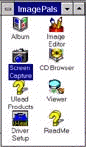
Select F7 to be the activation button (it is on the keyboard).
Select Selected Area to select parts of the screen.
Open any application that contains images.
Press the F7 button.
Then drag the mouse to open a window of the screen area to be captured.
Click inside the window. (The selected screen area will be in the clipboard.)
Goto PageMaker and select Paste from the edit menu. (if you get an
error use Word as a middleman, (see above: parts of an image from photoshop))
The captured area of the screen will appear.
PageMaker operations:
Once text and images are brought in the rest is simply a matter of aesthetics.
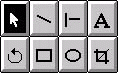
Use the tools to select objects, create lines, text, rotate objects, make
rectangles, ovals, and crop.
Text manipulation
Select the text with the text tool (looks like an A in a box above).
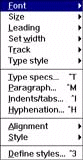
Select any text option from the Type menu.
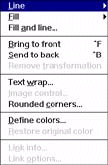
Element manipulation
Select any element (line, rect, oval) from the text tools
Select any option from the Element menu (line thickness, round corners,
filling patterns,etc.)
After re-arranging the elements, images, and text you can print.
To print out the document simply select the Print menu item in the
File menu.
For additional help look into the Help menu or send e-mail to me.