User Interaction
Picking objects in the scene
Picking an object is basically clicking on the screen and
getting back the serial number of that object. If the object is a solid then pick should apply to solids, if face
then to faces and so on. We will show how to
pick solids in a scene. The pick
method should apply to the MyGroup class (since it has to search the group). We
should provide the xmouse and ymouse coordinates of the screen when the mouse
is clicked. The pick algorithm should return
back an integer number, which is the serial number of the picked object.
Therefore, the pick method should be in the mouseDown and should look like
this:
public boolean mouseDown(Event e, int x, int y){
xf = x;
yf = y;
group.pick(x,
y);
repaint();
return true;
}
This means that MyGgroup should have a method called pick. MyGroup.pick()
will transfer its jurisdiction to the solids[i].pick() one level below and expect
back a boolean
true or false indicating that a solid was or was not picked:
public boolean pick(int xmouse, int ymouse){
boolean in =
false;
for(int i=0;
i<numSolids; i++)
if(solids[i].pick(xmouse, ymouse) ==
true){
in = true;
break;
}
return in;
}
The if(in==true) break; statement indicates that if an object was found
there is no need to continue.
At this point object transfers its jurisdiction one level
below asking the MyFace to find whether a face was selected.
public boolean pick(int xmouse, int ymouse){
boolean in
= false;
for(int
i=0; i<numFaces; i++)
if(faces[i].pick(xmouse, ymouse) == true){
in = true;
setColor(Color.red);
break;
}
return in;
}
At the MyFace level the pick method is as follows:
public boolean
pick(int xmouse, int ymouse){
Polygon poly = new Polygon();
for(int i=0; i<numPoints; i++){
MyPoint p = points[i].setPerspective();
poly.addPoint((int)p.x+200, (int)p.y+200);
}
return
poly.contains(xmouse, ymouse);
}
The face is projected on the screen through axo or
perspective projection and now the problem has been deduced to simply finding
whether a 2D point (xmouse, ymouse) is within a 2D polygon poly area.
This can be dome manually or we can use the contains() method of polygon. If poly.contains()
is true, face was indeed selected else not.
In this example, we have managed to pick a solid on the screen. This is a significant task. Objects suddenly can become active. The user will be able to select solids and do things to them such as move, rotate, scale, erase, etc. This is the first step to interactivity on the MySolid level.
The result is:
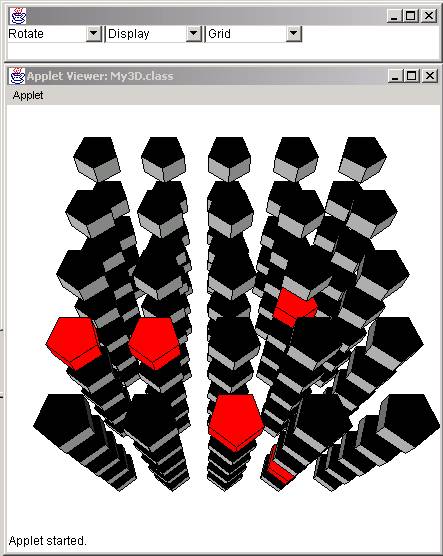
Simulating menu bars
In this example, we simulate a menu bar using choice
buttons. The reason is that real menu bars need detached windows to exist, and
we would like to use the existing applet window. So choice buttons are sticked
to frame window that can be moved anywhere in the scene. Here is the code for a
simple menu bar:
import java.applet.*;
import java.awt.*;
public class MyControl extends Frame{
public final int MOVE
= 0;
public final int
ROTATE = 1;
public final int
DEFORM = 2;
public int
transform_type = ROTATE;
public static final
int AXONOMETRIC = 0;
public static final
int PERSPECTIVE = 1;
public static final
int HYPERBOLIC = 2;
public static int
projection_type = PERSPECTIVE;
public final int POINTS = 0;
public final int LINES = 1;
public int display_type = POINTS;
Choice transform;
Choice projection;
Choice display;
public MyControl() {
//*** Choice
setup
transform = new
Choice();
transform.addItem("Transform");
transform.addItem("Move");
transform.addItem("Rotate");
transform.addItem("Deform");
transform.setLocation(0, 20);
transform.setSize(100, 20);
//*** Choice
setup
projection = new
Choice();
projection.addItem("Projection");
projection.addItem("Axonometric");
projection.addItem("Perspective");
projection.addItem("Hyperbolic");
projection.setLocation(100, 20);
projection.setSize(100, 20);
//*** Choice
setup
display = new
Choice();
display.addItem("Display");
display.addItem("Points");
display.addItem("Lines");
display.setLocation(200, 20);
display.setSize(100, 20);
setSize(400, 60);
setLocation(20, 20);
setLayout(null);
add(transform);
add(projection);
add(display);
show();
}
//******************************************
public boolean
action(Event e, Object o){
if(e.target instanceof
Choice){
if(o.equals("Move"))
transform_type = MOVE;
else
if(o.equals("Rotate"))
transform_type = ROTATE;
else
if(o.equals("Axonometric"))
projection_type = AXONOMETRIC;
else
if(o.equals("Deform"))
projection_type = DEFORM;
else
if(o.equals("Perspective"))
projection_type = PERSPECTIVE;
else
if(o.equals("Hyperbolic"))
projection_type = HYPERBOLIC;
else
if(o.equals("Points"))
display_type = POINTS;
else
if(o.equals("Lines"))
display_type = LINES;
}
return true;
}
}
A frame is created first. This is like a window coming out
of the applet screen. Then a choice
button is defined and attached to the frame. A set of Choice buttons called transform,
projection, and display are defined. The
action method sets the variables to whatever value is assigned.
if(e.target instanceof
Choice){
if(o.equals("Move"))
transform_type = MOVE;
else
if(o.equals("Rotate"))
transform_type = ROTATE;
. . . (etc.)
Once a choice is selected a flag called transform_type,
or display_type
or projection_type
is set to MOVE or ROTATE, etc. The flag is a static variable and that is how
the main program knows about their changes:
//************************************************
public boolean
mouseDrag(Event e, int x, int y){
int xoff = x - xf;
int yoff = y - yf;
switch(control.transform_type){
case 0: //move
group.setMove(xoff, yoff, 0.);
break;
case
1: // rotate
group.setRotatex(xoff*Math.PI/180);
group.setRotatey(yoff*Math.PI/180);
break;
}
repaint();
xf = x;
yf = y;
return true;
}
The result is:

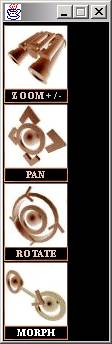
A variation of the Choice button can be found in the following code. Here we create a Frame and we draw predefined images. We then check for the mouse location and if it is clicked on top of an image we replace it with its inverted image and send execute the command. Here is the code:
import
java.awt.*;
import
java.applet.*;
public
class MyToolbar extends Frame
{
Image
icons[];
int flag;
int sf =
1;
Frame
parent;
//
public toolbar(Frame parentframe, Image Images[])
public MyToolbar(Applet app)
{
super ();
setSize (72,344);
setResizable(false);
icons = new Image[8];
//for (int i=0; i<Images.length;
i++) {
icons[0] =
app.getImage(app.getDocumentBase(),"res/1i.gif");
icons[1] =
app.getImage(app.getDocumentBase(),"res/2i.gif");
icons[2] =
app.getImage(app.getDocumentBase(),"res/3i.gif");
icons[3] =
app.getImage(app.getDocumentBase(),"res/4i.gif");
icons[4] =
app.getImage(app.getDocumentBase(),"res/1.gif");
icons[5] =
app.getImage(app.getDocumentBase(),"res/2.gif");
icons[6] =
app.getImage(app.getDocumentBase(),"res/3.gif");
icons[7] =
app.getImage(app.getDocumentBase(),"res/4.gif");
//}
setForeground(Color.black);
setBackground (Color.black);
Dimension
screenSize=getToolkit().getScreenSize();
Dimension dialogSize=size();
setLocation(10, 100);
show();
}
public void paint(Graphics g) {
for (int i=0; i< 4; i++){
g.drawImage
(icons[i],4,79*i+25,this);
}
if (flag == 1) g.drawImage
(icons[4],4, 79*0+25, this);
else if (flag == 2) g.drawImage
(icons[5],4,79*1+25, this);
else if (flag == 3) g.drawImage
(icons[6],4,79*2+25, this);
else if (flag == 4) g.drawImage
(icons[7],4,79*3+25, this);
}
public boolean mouseDown (Event evt, int x,
int y) {
if (y >= 79*0+25 && y <=
79*1+25) {
//progWindow.current_transform =
progWindow.ZOOM;
//app.setCursor(Cursor.N_RESIZE_CURSOR);
flag = 1;
}
else if (y >= 79*1+25 && y
<= 79*2+25) {
//progWindow.current_transform =
progWindow.SLIDE;
//parent.setCursor(Cursor.MOVE_CURSOR);
flag = 2;
}
else if (y >= 79*2+25 && y
<= 79*3+25) {
//progWindow.current_transform =
progWindow.ROTATE;
//parent.setCursor(Cursor.HAND_CURSOR);
flag = 3;
}
else if (y >= 79*3+25 && y
<= 79*4+25) {
//progWindow.current_transform =
progWindow.MORPH;
//parent.setCursor(Cursor.W_RESIZE_CURSOR);
flag = 4;
}
repaint();
return true;
}
}
The result is: