Using Java2 and TextPad
So far we have been working with Java 1.8 the first version of Java. For the purpose of our exercises and code writing it was simple and straightforward. The new version of Java, that is, Java2 or Java1.3 (the same as Java2 with a few additions) incorporates a few major improvement over it predecessor java 1.8. The differences are listed below:
- Java2 includes Swing, the new Java user interface package (javax.swing.*)
- Java2 handles events (such as mouse movement, key pressing, or button pressed) differently.
- Java2 includes more methods that allow easier image processing
· Java2 allows more efficient, safer and sophisticated networking (rmi, jini, and servlets)
· Java2 allows easy ways to read and write files (BufferedInput/Output)
Getting Java2
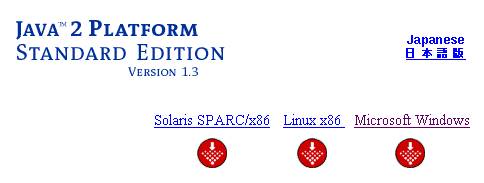
To install Java2 go to http://java.sun.com/j2se/1.3/download-windows.html, download the software and install it (it will be installed at c:\jdk1.3 directory) ..
To browse through the documentation go to http://java.sun.com/j2se/1.3/docs/api/index.html or download it at the same site http://java.sun.com/j2se/1.3/download-windows.html.

To get Java2 for the Mac go to this site http://www.apple.com/java/.
Getting TextPad.
To write, debug, compile, and run code we need an editor. There are many editors that provide help, built-in methods, visual interfaces (that is, building code by moving objects on the screen), and other useful features. These editors are called IDEs for Integrated Development Environments and Symantec café was one of them. The problem with these software is that they “spoil” the programmer, make them dependent on them and sometime prohibits one to do certain things or to know how things are being done. For the purposes of this book we will be using as very simple editor that combines features of and IDE without restraining the programmers creativity and allowing them to know the internal operating functions of java and the operating system it runs on. TextPad is a simple editor that can be found at http://www.textpad.com. It is a shareware and can be downloaded and used but ultimately must be purchased for only $27, which is worth it!
After you install TextPad you need to make it aware of the Java2 installation. Go to start->Settings->Control Panel and select System. Then under environment Variables select Path and add C:\jdk1.3\bin. Make sure it is separated by semicolons (;) with the other paths. For example:
C:\WINNT\system32;C:\WINNT;C:\WINNT\System32\Wbem;C:\jdk1.3\bin;C:\orant\bin
are all separated by (;) except the last one than ends with nothing. These paths tell the system where to look for things. So when you type javac at the dos prompt level, the system searches first through the paths and eventually runs into C:\jdk1.3\bin (see above) where the command javac is located. So TextPad calls javac to compile your code and that should be in the C:\jdk1.3\bin directory. If you already have some other directory where javac was installed, such as C:\cafe\java\bin erase it so the system does not conflict with the newer (correct) version in the C:\jdk1.3\bin directory.
Makefile
To compile and run a java file we use the javac and java commands on the command prompt. Now that is convenient when we have on file so all we do is:
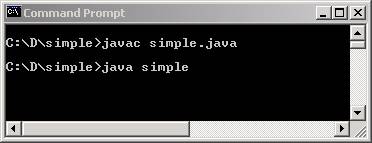
But what if we have may java files interconnected. It would hard to repeatedly compile each one in the right order. To avoid such difficulty we use a program called nmake which can be downloaded from
http://download.microsoft.com/download/vc15/Patch/1.52/W95/EN-US/Nmake15.exe
Nmake is a command that needs a file that contains all the java files to compile. It executes the commands in the file in a specific order. For example, the following file is a file that can compile, link, jar or javadoc two files file1.java and fiile2.java. By modifying the file names we can add as many java files we want:
# makefile.mak a MAKEFILE for JAVA development
# (for use with Microsoft nMAKE)
# i.e. nmake /f makefile.mak doc
# to generate JAVADOC
.SUFFIXES: .class .java
JAVAHOME=c:\jdk1.3
JAVAC= $(JAVAHOME)\bin\javac
PATH=$(JAVAHOME)\bin;$(PATH)
CLASSPATH=.;$(JAVAHOME)\lib\classes.zip;$(JSDKHOME)\lib\classes.zip
DEST=.
DOC=.
JAVA=$(JAVAHOME)\bin\java
JAVACFLAGS=-deprecation
.SUFFIXES: .java .class
.java.class:
$(JAVAC) -classpath $(CLASSPATH) $(JAVACFLAGS) $<
CLASSFILES = file1.class \
file2.class
SOURCEFILES = file1.java \
file2.java
# begin ---- JAR support ----------
JARFILE= theJAR.jar
$(JARFILE): $(CLASSFILES) $(SOURCEFILES)
jar cfm0 $(JARFILE) <<manifest.tmp $(CLASSFILES)
$(DATAFILES)
Name: file1.class
Java-Bean: False
Name: file2.class
Java-Bean: True
<<
# end ---- JAR support ----------
all : $(JARFILE) $(CLASSFILES) doc
doc : $(CLASSFILES)
javadoc -version -author -d $(DOC) $(SOURCEFILES)
install :
copy $CLASSESFILE $(DEST)
clean:
del $(CLASSFILES)
As you can see there are variables defined as VARIABLE= that can be used as $(VARIABLE). For example JAVAHOME=c:\jdk1.3 tells us that c:\jdk1.3 will be referred to as JAVAHOME and can be invoked later on in the code using the $(JAVAHOME) syntax. In that way, we combine variables into complex commands, i.e.:
JAVAHOME=c:\jdk1.3
JAVAC= $(JAVAHOME)\bin\javac
SOURCEFILES = file1.java \
file2.java
can compose the command:
$(JAVAC) $( SOURCEFILES)
really means:
c:\jdk1.3\bin\javac file1.java file2.java
Similarly, there are anchors that use the