18.
Selecting Objects
So far we are able to create shapes by calling the MyShape constructor. We store the shapes in an array of shapes (which form a MyGroup objects we called “group”) and then we draw them on the screen.
//*****************************************
public void init(){
for(int i=0; i<numShapes; i++){
for(int j=0; j<numShapes; j++){
shape[i*numShapes+j] = new MyShape(5,9.,i*20.,
j*20.);
}
}
group = new MyGroup(numShapes*numShapes, shape);
}
Since these shapes are stored in an array we should be able to select them. All we need is an x and y mouse point and the array of shapes. What we do is, to first find which are the closest points to the x,y mouse point and then find which shape do those points belong. Then, we could color the shape with a red color to visualize it picked.
This means that we need to create two more data members on each of the four classes we created (MyPoint, MySegment, MyShape, and MyGroup). These are
Color color = Color.blue;
boolean isSelected = false;
and we also need to create a method called select. So at the level of the MyPoint we get:
import java.awt.*;
public class MyPoint {
// members of class
double x, y;
// the coordinates
Color color = Color.blue; // default color
boolean isSelected = false; // is this point selected?
//********** Constructor
public MyPoint(double xin, double yin){
x = xin;
y = yin;
}
//********** Move
public void move(double xoff, double yoff){
x = x + xoff;
y = y + yoff;
}
//************* Select
public boolean select(double xpick, double ypick, double
tolerance){
if(Math.abs(x - xpick) <
tolerance &&
Math.abs(y - ypick) < tolerance
) {
isSelected = true;
return true;
}
else {
isSelected = false;
}
return false;
}
}
The select(..) method gets two coordinates xpick and ypick (coming from the mouseDown) and a tolerance of how far can a point be to be selected. So first we get the absolute distance of the xpick and ypick from the local x and y coordinates of the point and we check to see whether they are less than the tolerance value. If yes then we set the isSelected Boolean to true else false. Then we return to the system whether the point is selected or not.
On the level of MySegment we do almost the same thing:
import java.awt.*;
public class MySegment {
// members of class
MyPoint start = new MyPoint(0., 0.); // start point
MyPoint end = new
MyPoint(0., 0.); // end point
Color color = Color.blue; // default color
boolean isSelected = false; // is this segment selected?
//********** Constructor
public MySegment(MyPoint p1, MyPoint p2){
start.x = p1.x;
start.y = p1.y;
end.x = p2.x;
end.y = p2.y;
}
//********** Move
public void move(double xoff, double yoff){
start.move(xoff, yoff);
end.move(xoff, yoff);
}
//*********** draw
public void draw(Graphics g){
if(isSelected)
g.setColor(Color.red);
else
g.setColor(color);
g.drawLine((int)start.x, (int)start.y,
(int)end.x, (int)end.y);
}
//******** Select
public boolean select(double xpick,
double ypick, double tolerance){
if(start.select(xpick, ypick,
tolerance)==true ||
end.select(xpick, ypick,
tolerance)==true) {
isSelected = true;
return true;
}
else {
isSelected = false;
}
return false;
}
}
The select(..) method gets two coordinates xpick and ypick (coming from the mouseDown) and a tolerance value. It then transfers the process to the select(..) method of the two points start and end. If either one is yes then we set the isSelected Boolean to true else false. Then we return to the system whether the segment is selected or not.
In addition, here, in the draw(..) method we set the color to red if isSelected is true, else we leave it with the default color.
At the level of the Shape we do almost the same thing as for the segment:
import java.awt.*;
public class MyShape {
// members of class
MySegment[] segs;
// array of segments
int numSegments;
// number of segments
Color color =
Color.blue; // default color
boolean isSelected = false; // is this shape selected?
//********** Constructor
public MyShape(int numInputSegments, MySegment[]
inputSegments){
. . . . .
}
//*************** An alternative constructor
//*************** Creates
public MyShape(int numSides, double radius,
double xoff, double yoff){
. . . . .
}
//********** Move
public void move(double xoff, double yoff){
for(int i=0; i<numSegments; i++)
segs[i].move(xoff, yoff);
}
//*********** draw
public void draw(Graphics g){
for(int i=0; i<numSegments; i++)
segs[i].draw(g);
}
//******** Select
public boolean select(double xpick,
double ypick, double tolerance){
for(int i=0; i<numSegments; i++){
if(segs[i].select(xpick, ypick,
tolerance)==true){
isSelected = true;
for(int j=0; j<numSegments; j++)
segs[j].isSelected = true;
return true;
}
else {
isSelected = false;
}
}
return false;
}
}
The select(..) method gets two coordinates xpick and ypick (coming from the mouseDown) and a tolerance value. It then transfers the process to the select(..) method of the segments. If a segment returns true then we set the isSelected Boolean to true else false. If a segment found that means that the whole shape should be selected, therefore we loop for all the segments of that shape and set their isSelecetd value to true. Then we return to the system whether the shape is selected or not.
At the level of MyGroup it is almost the same. I omit it here but can be found in the code gridSimple.java.
Now in the main code we need to call the select(…) methods passing the x and y coordinates of the mouse to get back whether a shape was selected within that tolerance:
//*****************************************
public boolean mouseDown(Event evt, int x, int y){
xfirst = x; //
remember this point
yfirst = y;
// Pick a shape
for(int i=0; i<group.numShapes;
i++)
if(group.shapes[i].select((double)x, (double)y, 10.) == true)
System.out.println("Selected = " + i);
repaint();
return true;
}
All we do is to go through all the shapes of the group and call the select(..) method passing the x and y coordinates of the mouse and the tolerance (in this case 10.). This will go all the way down into the shape, segment and point classes and set the isSelected values to true.
When we draw anything selected will be drawn red otherwise blue.
If we want to move the selected shapes while dragging the mouse we need to write the following code:
//*****************************************
public boolean mouseDrag(Event evt, int x, int y){
int xoff = x - xfirst; // get
the offset
int yoff = y - yfirst;
for(int i=0; i<group.numShapes; i++)
if(group.shapes[i].isSelected)
group.shapes[i].move((double)xoff, (double)yoff);
xfirst = x; //remember this
point
yfirst = y;
repaint();
return true;
}
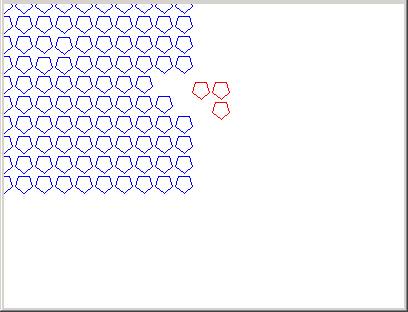
We go through all the shapes and if they are selected we move them. Here is the result:
19.
Debugging
Debugging refers to the process of finding mistakes (bugs) in the code. Mistakes are mostly logical. The compiler will catch spelling and basic syntax mistakes but not logical mistakes. Logical mistakes refers to mistakes such as:
int x = new int[5];
for (int i=0; i< 6;
i++)
x[i] = 0.;
I allocated memory for 5 integers and I loop for 6. The compiler will not see it but when you run the program it will give you an exception mistake because it is trying to write beyond the array’s size.
Logical mistakes can become pretty complex, when the programs gets pretty complicated too. For example:
MyPoint start;
MyPoint end;
//********** Constructor
public MySegment(MyPoint p1, MyPoint p2){
start = p1;
end = p2;
}
The classes start and end were never initialized (no memory allocated for them). Therefore later on when we use them they will behave like arrays with the size of 1 causing troubles and headaches. The compiler will not catch it and when we run there will be no exception but the results we expect to see on the screen will be unexpected and weird.
To find bugs we usually need to print out the value of variables at the place where we suspect the problem may be. A statement of the type:
System.out.println("x = " + x);
will print the value of x.
Other times we put dummy print statement between blocks of the code to find whether a block of code is being reached. For example:
System.out.println("1111");
. . . .
System.out.println("2222");
May be useful. If 2222 is not printed in the output stream
that means that the code is crashing before 2222.
In our code so far it may
be useful to be able to printout all the classes we have created. A method such as:
//********** Print
public void print(){
System.out.println("x = " + x
+ " y = " + y);
}
will print out the values of x and y in the MyPoint class. That method can be put in a similar way in the MySegment class to print all the segments there:
//************
public void print(){
start.print();
end.print();
}
and so on.
Debugging is one of the most difficult tasks in code development mainly because bugs are hard to detect. Especially, when the code is not yours! Software companies dedicate almost twice the time they spend in producing a software in debugging it and making it bug-free (even though theoretically that is almost not possible). In the best scenario almost-bug-free software is referred to as beta. A no-bug software is referred to as release.
Experience, careful reading of the code, and asking around are other ways of debugging.
20.
Basic GUI (Graphic User Interface)
GUI (pronounced gou-ee) stands for Graphical User Interface and it refers to all the buttons, dialog boxes, menus, etc on the screen. These elements are supposed to convey information to the user about the status of the program and to accept use inputted information to the program. We will build here a set of buttons and have the user select whether s/he wants to move, rotate or scale the selected objects on the screen.
First we construct a class called control. In side that class we create three buttons. Here is the code:
import java.applet.*;
import java.awt.*;
public class MyControl {
public int MOVE = 0;
public int ROTATE = 1;
public int SCALE = 2;
public int status = MOVE;
Button bmove;
Button brotate;
Button bscale;
public MyControl(Applet applet){
bmove = new Button("Move");
brotate = new Button("Rotate");
bscale = new Button("Scale");
applet.add(bmove);
applet.add(brotate);
applet.add(bscale);
}
We define three variables MOVE, ROTATE, and SCALE and a variable status. Status is initially set to MOVE. We do this to make the code more readable and understandable (for those who do not know that 0 stands for MOVE.
Then we define three Button objects bmove, brotate, and bscale. In the constructor we create the buttons and add them to the applet. (The button class is documented in the java awt API).
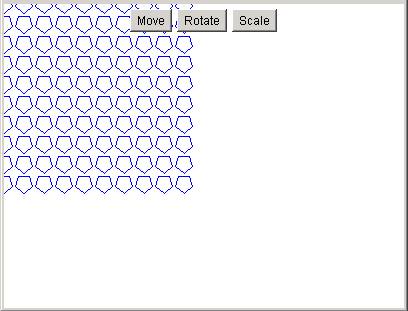
This will create three button on the screen when we create the control class:
MyControl control = new MyControl(this);
It will look like this (but the buttons will be unresponsive):
Now we need to give life to the buttons. So far the mouse responds to the mouseDown and the mouseDrag. There is another java method called action(..) that allows GUI objects to return back information from the screen. So we add that method to the main code (simple):
//******************************************************************
public boolean action(Event evt, Object obj){
control.doButtons(evt, obj);
return true;
}
This means that the buttons will be handled in the control class through a method called doButtons (that is how we will call it).
So in the control class we add the method:
//******************************************************************
public void doButtons(Event e, Object o){
if(e.target instanceof Button){
if(e.target==bmove)
status = MOVE;
else if(e.target==brotate)
status = ROTATE;
else if(e.target==bscale)
status = SCALE;
}
System.out.println("status" + status);
}
this method get the Event object from the main code and uses the statement instanceof to find out what kind of GUI thing was clicked. If it is of a type Button the we set the status variable to MOVE, ROTATE, or SCALE and printout the value (for debugging purposes).
Now using the status variable, we can modify the main code to handle movement, rotation, or scale:
import
java.applet.*;
import
java.awt.*;
public class simple extends Applet{
MyPoint[] p = new MyPoint[8];
MySegment[] s = new MySegment[4];
int numShapes = 10; //num on side of grid of shapes
MyShape[] shape = new
MyShape[numShapes*numShapes];
MyGroup group;
double side = 10.;
MyControl control; // the GUI
int xfirst = 0; // the first point clicked
int yfirst = 0;
//*****************************************
public void init(){
for(int i=0; i<numShapes; i++){
for(int j=0; j<numShapes;
j++){
shape[i*numShapes+j] = new
MyShape(5,9.,i*20., j*20.);
}
}
group = new MyGroup(numShapes*numShapes,
shape);
control = new MyControl(this);
}
//*****************************************
public void paint(Graphics g){
group.draw(g);
}
//*****************************************
public boolean mouseDown(Event evt, int
x, int y){
xfirst = x; // remember this point
yfirst = y;
// Pick a shape
for(int i=0; i<group.numShapes;
i++)
if(group.shapes[i].select((double)x, (double)y, 10.) == true)
System.out.println("Selected = " + i);
repaint();
return true;
}
//*****************************************
public boolean mouseDrag(Event evt, int
x, int y){
int xoff = x - xfirst; // get the offset
int yoff = y - yfirst;
MyPoint ref = new MyPoint(x, y);
for(int i=0; i<group.numShapes;
i++)
if(group.shapes[i].isSelected){
if(control.status ==
control.MOVE)
group.shapes[i].move((double)xoff, (double)yoff);
if(control.status ==
control.ROTATE)
group.shapes[i].rotate((double)xoff, ref);
}
xfirst = x; //remember this point
yfirst = y;
repaint();
return true;
}
//******************************************************************
public boolean action(Event evt, Object
obj){
control.doButtons(evt, obj);
return true;
}
}
Selecting points/segments/shapes/groups
File import