Animation
Animation is the sequential display of images. In our previous examples, we have been creating animation by repainting the graphics on every mouse movement. As you can understand, this is a controlled animation. Eventually, we may want to set an object on motion without basing their movement on the user’s mouse. To make things even more complicated, we may want to set a series of objects in motion and control their behavior through a common clock. To do that we need to understand the basics of a computer clock. As we already know, computers have internal clocks that tick extremely (for us) fast, i.e. 500 MHz, which means 500,000,000 ticks per second. Now when we do animation we need to us that clock as a guide of time. Sometimes we also need to keep track of two or more animations as they are deployed in parallel in the scene. For example, in a car race video games there may be your car moving and at the same time other cars that you need to by-pass (not to mention moving obstacles on the road). It seems that these animations are happening in parallel. But practically that cannot happen because then we would need parallel processors, each taking care of one object. Instead, what we do is we divide the processor time in small time sections, called threads, each keeping track of an animated object in the scene. This not too hard to do for the processor since it can take care of 500 million things every second!
The process of dividing the computer’s time in threads is called multi-threading. In Java a Thread is an object that is defined as
Thread myThread = new Thread(this);
The parameter this means that you need to pass it the applet itself in order to create an animation within that applet. Threads take three basic methods start, sleep, and stop.
Now within the applet/application, we need to tell the system when to start an animation and when to stop, in the same way we tell it to look for mouse dragging or action events. This is done through a process called Runnable which the applet needs to implement in order to do animation. Here is the code:
import java.applet.*;
import java.awt.*;
public class simple extends Applet implements Runnable{
Thread MyThread;
int x = 100, y=100;
//********************
public void paint(Graphics g){
g.fillRect(x, y, 20, 20);
x += (int)(Math.random()*10.);
x -= (int)(Math.random()*10.);
y += (int)(Math.random()*10.);
y -= (int)(Math.random()*10.);
}
//********************
public void start(){
MyThread = new Thread(this);
MyThread.start();
}
//********************
public void run(){
while(true){
repaint();
try{
MyThread.sleep(20);
}
catch (Exception e){
;
}
}
}
//********************
public void stop(){
MyThread.stop();
}
}
First, we declare a Thread object called MyThread (we can declare as many as we want). Second, we declare the class to be of type Runnable. This means that we must include three methods start, run, and stop because they are imposed by Runnable (In Java Runnable is called an interface and has three methods which have to be used). So in our case, we need to call the three methods each of which does starts, runs, and stops the thread. Start() creates the thread and starts it, stop() stops the thread and run() runs it. Running a thread means putting it in an infinite loop (while(true)) and within that loop we include the methods or objects we want to animate. The try/catch clauses are there to have the animation slow down using the sleep method. Sleep causes the currently executing thread to sleep for the specified number of milliseconds.
In our case, all we are calling in the run method is repaint that draws a rectangle in a random offset position.
Below is a more general structure of the animation process:
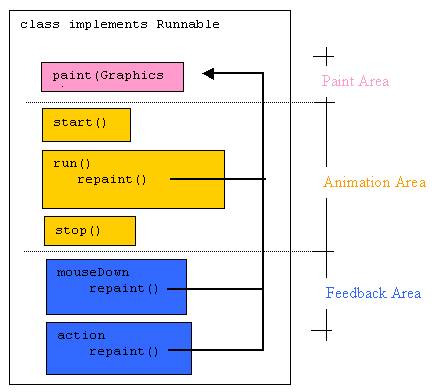
As you can see we can interfere with the animation start/run/stop sequence by calling mouse or GUI commands. So in our previous example we can add the mouseDown method and alter the position of the trembling rectangle:
//********************
public boolean mouseDown(Event evt, int xm, int ym){
x = xm;
y = ym;
return true;
}
If we use the tracing option described earlier, that is, adding the following method:
public void update(Graphics g){
paint(g);
}
The result is
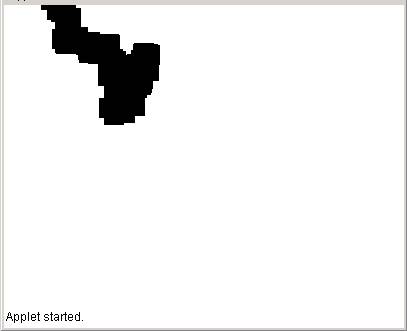
Double Buffering
When we draw on the screen we use the paint(g) method. Every time we call a graphics method, such as drawRect or drawString, we actually are writing to the screen. Imagine that we have 1,000 lines to draw on the screen and use the following code:
for(int I=0; i<1000; i++)
g.drawLine(10*i, 10*1, 20*i, 20*i);
We are actually sending drawLine commands to the screen 1000 times. This turns out to be an inefficient way of drawing that causes the whole system to delay and the drawing to flicker. To avoid such a problem we do not draw straight to the screen but instead we draw to an image and when done, we display the whole image. This image is also referred to as a buffer. A buffer is a memory area where we store temporary information. So this method of indirect drawing is called double buffering. Here is how it is done:
We create an image, lets call it offscrImg, which serves as a memory area for drawing shapes. This area serves as an in-between area for storing graphical information before they are drawn to the applet's screen. That is, instead of drawing a line and then another line and then another line till we create a polygon we draw all the lines on the offscrImg and when done we copy the whole image to the applet's screen. This is done to make thing faster because every draw to the applet screen takes some time. This method, which is referred to as double buffering, is very useful especially for real-time animation. We first create an Image
Image offscrImg = createImage(400,300); //Set up virtual screen
Graphics offscrG = offscrImg.getGraphics(); // Get a graphics context
In the paint method we draw to the off screen graphics and when dome we draw in the image. The image and the graphics are associated, so any drawing on the offscrG is by association drawn to the offscrImg. So our paint method will look like this:
public void paint(Graphics g) {
for(int I=0; i<1000; i++)
offscrG.drawLine(10*i, 10*1, 20*i, 20*i); // draw virtually
g.drawImage (offscrImg,0,0,this);
}
The result is more stable graphics and less flickering.
Images
Displaying
An image, in Java, is an array of pixels. A pixel is represented in java as an integer number. So an image is an array of integer numbers. As we have seen in the beginning of this book, an integer number is composed of 32 bits. So Java uses those 32 bits to store information about the pixel’s color. Specifically, the first eight bits are for the degree of transparency (also called alpha channel), the next eight for red, the next eight for green, and the last eight for blue. Schematically, it lloks like this:

To get access to a color (receive or change) we need to do manipulations on the bit level to extract the proper 8 bits. This is done through bit-manipulation methods provided by java. In brief they work as follows. Suppose we have a pixel called myPixel.
int myPixel;
int alpha =( myPixel & 0xff000000)>>24;
int red =( myPixel & 0xff0000)>>16;
int green =( myPixel & 0xff00)>>8;
int blue =( myPixel & 0xff);
The variables alpha, red, green, and blue contain the corresponding values fir that pixel. [FYI, the java code does the following: to get the value of red we AND (symbol &) with the hexadecimal number oxff0000 and then we shift the bit by 16 positions. That will return only the second group of 8-bits that holds the value of red. ]
Now reading in an image in Java is very simple. Java has built-in methods that read .gif and .jpg image file formats. The method is:
Image myImage = getImage(getCodeBase(), "royce.jpg");
where getCodeBase() is the URL of where the code is. If the image called Royce.jpg is in the same directory as the code we pass it as the string "royce.jpg". The following code will read an image and display it.
import java.applet.*;
import java.awt.*;
import java.awt.image.*;
public class MySimpleImage extends Applet {
Image myImage;
//********************
public void init(){
myImage = getImage(getCodeBase(), "royce.jpg");
}
//********************
public void paint(Graphics g){
g.drawImage(myImage, 0, 0, this);
}
}
The result is:
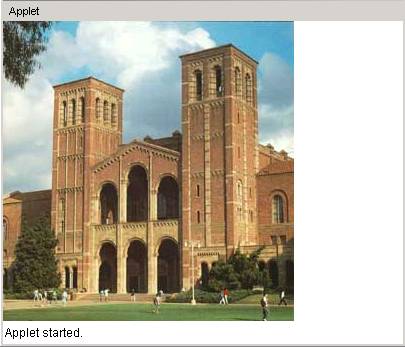
Processing
In order to process the pixels of an image we need to place them in an array (which we will call pixels[]). However, Java provides us with a one-dimensional array that correspond to a two-dimensional image. So we need to go from two to one and from one to two dimensions.
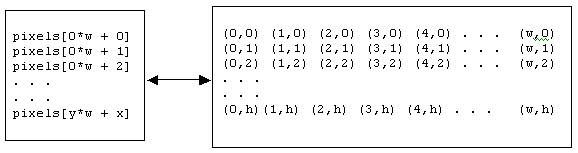
So we use the following code to extract the index of the one-d array pixels from two counters x and y:
for(int y=0; y<height; j++)
for(int x=0; x<width; x++)
pixels[y*width+i] = newValue;
Here is the code the opens an image (jpg), inverts its pixels, grayscales them out and the displays it:
import java.applet.*;
import java.awt.*;
import java.awt.image.*;
public class MyImage extends Applet {
int
width; // the width of the image
int
height; // the height of the image
int[] pixels; // an array to hold the pixels
Image
myImage; // the image to process
//********************
public
void init(){
myImage = getImage(getCodeBase(),
"royce.jpg");
getThePixels(myImage);
invert();
average();
myImage
= showImage();
}
/**
* Grab the pixels in order to process them
*************************************/
public
void getThePixels(Image picture)
{
waitToOpenImage(picture);
width=picture.getWidth(this);
height=picture.getHeight(this);
pixels=new int[width*height];
PixelGrabber
pg=new
PixelGrabber(picture,0,0,width,height,pixels,0,width);
try
{
pg.grabPixels();
}
catch (InterruptedException e){
System.out.println("Cannot grab
Pixels");
}
}
/**
* Make sure the image is loaded before you
process it
*************************************/
void waitToOpenImage(Image
picture)
{
MediaTracker
tracker=new MediaTracker(this);
tracker.addImage(picture,0);
try
{
tracker.waitForID(0);
}
catch (InterruptedException e){
System.out.println("Cannot
wait for picture");
}
}
/**
* Inverts the value of all pixels
*************************************/
void
invert()
{
for(int index=0;index<width*height;index++)
pixels[index]=pixels[index]^0xffffff;
}
/**
* Assigns the average of RGB to a pixel
* (essentially it converts to grayscale)
*************************************/
void
average()
{
for(int
index=0;index<width*height;index++)
{
int
c=pixels[index];
int
r=(c&0xff0000)>>16;
int
g=(c&0xff00)>>8;
int
b=(c&0xff);
int
altered= (r + g + b) /3;
pixels[index] =
(c&0xff000000)+(altered<<16)+(altered<<8)+
altered;
}
}
/**
* Load a new image with the changes
*************************************/
public
Image showImage()
{
return
createImage(new
MemoryImageSource(width,height,pixels,0,width));
}
//********************
public
void paint(Graphics g){
g.drawImage(myImage, 0, 0, this);
}
}
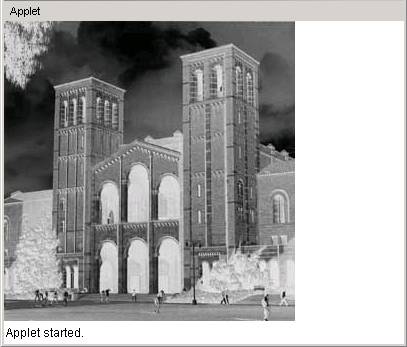
The result is this:
The structure of the code is as follows:
public class MyImage extends Applet
public void
init()
public
void getThePixels(Image picture)
public
void waitToOpenImage(Image picture)
public
void invert()
public
void average()
public
Image showImage()
public
void paint(Graphics g)
In the above code, we first grab the pixels, that is, we populate the pixels array with the pixel values of the image. To do that, we use a java method called PixelGrabber. We also need to make sure that the image is been read completely before we grab the pixels. So we wait using the method waitToOpenImage. Once we have the pixels in the array we can do operations on them:
The invert method takes every pixel on the screen and inverts it value by using the OR operator against the hexadecimal number 0xffffff. The average method takes every pixel and averages out their value. That converts the image to grayscale (since gray is red=green=blue anyway). Finally, to show the changes made to the pixels, we need to update the image using the showImage method.
Image manipulation is a very powerful tool. It allows us, as humans, to see and interpret the images further. Unfortunately, for the computer an image is simply a long array of numbers. Nothing more. So we as humans need to create algorithms that take advantage of the computational power of the machine and allow us to explore images further that with our eye.
Using the mouse movement in Image Processing
To add interaction to the above image processing code we add teo method in the mouseDrag method:
//********************
public boolean mouseDrag(Event evt, int xm, int ym){
x = xm;
y = ym;
invertASetOfPixel (x, y);
return true;
}
//****************************
void invertASetOfPixel(int x, int y) {
int currentPixel = y*width+x;
for(int index=0;index<100;index++)
pixels[currentPixel+index]=
pixels[currentPixel+index]^0xffffff;
myImage = showImage();
repaint();
}
This will produce the following effect while we drag the mouse:
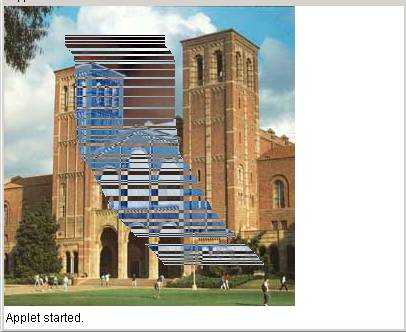
Here is what is going on:
The invertASetOfPixel method takes an x and y mouse point and finds th corresponding index in the pixels array:
int currentPixel = y*width+x;
Then it inverts the value of the next 100 pixels:
for(int index=0;index<100;index++)
pixels[currentPixel+index]=
pixels[currentPixel+index]^0xffffff;
which appears as a line of inverted pixels. We then use that method as we drag the mouse and we pass it continuously the x and y mouse coordinates.
Selective Rendering
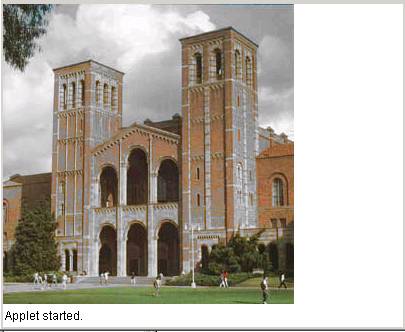
While passing from every pixel and altering its value, we can also put conditions for rendering only pixels that fulfill a specific condition. For example the following altered code for method average, renders only pixels that have a gray value more than 128. Here is the code:
public void average()
{
for(int index=0;index<width*height;index++)
{
int c=pixels[index];
int r=(c&0xff0000)>>16;
int g=(c&0xff00)>>8;
int b=(c&0xff);
int altered= (r + g + b) /3;
if(altered>128)
pixels[index] =
(c&0xff000000)+(altered<<16)+(altered<<8)+ altered;
}
}
The result is, of course, a selective rendering:
Screen Setup (Pan-Zoom-Snap)
Coming soon
Splines
General
A spline is a curve that passes through a set of given points. According to the mathematic that produce spline we give them names, such as cubic, bi-cubic (b-spline), quadratic, NURBS (non-uniform rational b-splines) or by the name of the people who invented them, such Lagrange or Bezier.
The mathematic behind the splines are complicated and go beyond the purpose of this book. We will go through the process of creating them and the algorithms that convert the mathematical expressions into a series of line segments on the screen.
Bezier spline
In general, a spline uses a number of points pk where k is a number that goes from 0 to n. So, in java, p[5] will be the fifth point. So to create a spline we need to multiply each of these points by a mathematical expression that defines the spline. Let take the example of a famous spline, the Bezier spline. The expression is
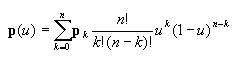
where u is the time interval. So if we were to calculate the above expression for n=3 the result would be:

which becomes:

or in java the above expression would look like this:
p.x = Math.pow(1-u, 3) * p[0].x + 3 * u * Math.pow(1-u, 2)*p[1].x +
3 * u * u*(1-u)*p[2].x + u*u*u*p[3].x;
p.y = Math.pow(1-u, 3) * p[0].y + 3 * u * Math.pow(1-u, 2)*p[1].y +
3 * u * u*(1-u)*p[2].y + u*u*u*p[3].y;
So to draw a Bezier curve with n points we write the following code:
import java.awt.*;
import java.applet.Applet;
public class Bezier extends Applet {
Point[] p; //the control points
int numpoints =0; //number of control points
double u; //the time interval
double step = .025; //time step value for drawing curve
public void init() {
// initialize and array of points
p = new Point[20];
}
//********
public void paint(Graphics g) {
if(numpoints>1){
double x1,x2,y1,y2;
x1 = p[0].x;
y1 = p[0].y;
int[] c = new int[numpoints];
int n = numpoints-1;
for(int k=0; k<=n; k++) // compute n!/(k!(n-k)!)
c[k] = factorial(n)/(factorial(k) * factorial(n-k));
for(u=step;u<=1+step;u+=step){
x2 = 0.;
y2 = 0.;
for(int k=0; k<numpoints; k++){
//use Bernstein polynomials
double blend = c[k]*Math.pow(u,k)*Math.pow(1-u, n-k);
x2 += p[k].x * blend;
y2 += p[k].y * blend;
}
//draw curve
g.drawLine((int)x1,(int)y1,(int)x2,(int)y2);
x1 = x2;
y1 = y2;
}
}
}
//********
public int factorial(int number){
if(number <= 1)
return 1;
else
return number * factorial(number - 1);
}
//********
public boolean mouseDown(Event evt, int x, int y) {
//Store point in array
Point point = new Point(x,y);
p[numpoints] = point;
numpoints++;
repaint();
return true;
}
}
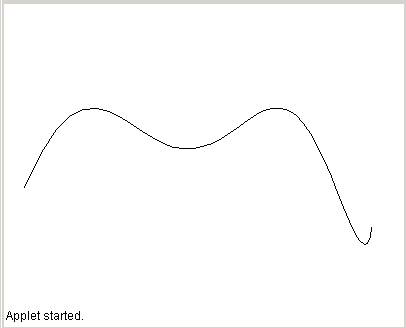
The result for 13 points is:
Networking
Server/Client
Java is primarily a network-oriented language. It was developed to run over the Internet and is therefore a good medium for sending data or invoking graphics on multiple remote computers. So far all the graphics examples we have demonstrated were designed to work on the local machine. But what if we want to run something on a remote machine, for example, move the mouse on one computer and see its movement on the screen of another computer.
The process of communication in Java is based on the client-server protocol: one computer plays the role of the client who asks for information and another computer plays the role of the server, which responds to the request. The roles can be reversed, that is, both can send/receive information.
Specific to the Web, a Web server is the computer program (housed in a computer) that serves requested HTML pages or files. A Web client is the requesting program associated with the user. The Web browser in your computer is a client that requests HTML files from Web servers.
Every computer that is connected to the Internet has an address, in order to be found. This address is called IP address and is a 32-bit number. The IP address is usually expressed as four decimal numbers, each representing eight bits, separated by periods. The format is “network.network.network.local". The number version of the IP address is represented by a name or series of names called the domain name. Here's an example:
130.5.5.25
The IP address 127.0.0.1 is the address of the local machine itself. Each of the decimal digits represents a string of four binary digits. Thus, the above IP address really is this string of 0s and 1s:
10000010.00000101.00000101.00011001
As you can see, we inserted periods between each eight-digit sequence just as we did for the decimal version of the IP address.
To establish a server in Java is very simple. All we need to do is include the following statement:
ServerSocket server = new ServerSocket( 5000);
Once that is done the server is waiting for connections. To establish a client in Java is also very simple. All we need to do is include the following statement:
Socket connection = new
Socket(InetAddress.getByName("127.0.0.1"), 5000);
Here is the code for establishing a client. The purpose of this client is to send to the server its mouse x and y coordinates.
import java.awt.*;
import java.applet.*;
import java.net.*;
import java.io.*;
public class MyClient extends Applet {
int xout, yout;
String xstring, ystring;
Socket connection;
DataOutputStream output;
//*******************
public void init(){
runClient();
}
//*******************
public void paint(Graphics g){
g.drawString(xstring.valueOf(xout)+ ", " +
ystring.valueOf(yout), xout, yout);
}
//******************
public boolean mouseDrag(Event evt, int x, int y){
xout = x;
yout = y;
sendData(xout, yout);
repaint();
return true;
}
//************************
public void runClient(){
try{
connection = new
Socket(InetAddress.getByName("127.0.0.1"), 5000);
//connection = new
Socket(InetAddress.getByName("some.other.address.edu"), 5000);
output = new DataOutputStream(connection.getOutputStream() );
System.out.println("Connection established with client:" +
connection.getInetAddress().getHostName());
}
catch(IOException ioe){
System.out.println("No connection");
}
}
//*************
public void sendData(int xout, int yout){
try{
output.writeInt(xout);
output.writeInt(yout);
output.flush();
System.out.println("Client sends = " + xout + " " + yout);
}
catch(IOException ioe){
System.out.println("No connection");
}
}
}
The server code is as follows:
import java.awt.*;
import java.applet.*;
import java.net.*;
import java.io.*;
public class MyServer extends Applet implements Runnable{
Thread myThread; //the receiving thread
int xrect=100, yrect=100; // the initial position
ServerSocket server;
Socket connection;
DataInputStream input; // the input stream
//*******************
public void init(){
runServer();
}
//*********************************
public void start() {
if(myThread == null) {
myThread = new Thread(this);
myThread.start();
}
}
//*********************************
public void stop() {
if(myThread != null) {
myThread.stop();
myThread = null;
}
}
//*********************************
public void run() {
while(myThread != null){
try{
receiveData();
myThread.sleep(20);
}
catch(InterruptedException ioe) {
stop();
}
}
}
//*******************
public void paint(Graphics g){
g.fillRect(xrect, yrect, 5, 5);
}
//*******************
public void update(Graphics g){
paint(g);
}
//******************
public boolean mouseDrag(Event evt, int xmouse, int ymouse){
xrect = xmouse;
yrect = ymouse;
repaint();
return true;
}
//************************
public void runServer(){
try{
server = new ServerSocket( 5000);
System.out.println("Waiting for connection...");
connection = server.accept();
input = new DataInputStream(connection.getInputStream() );
System.out.println("Connection established with client:" +
connection.getInetAddress().getHostName());
}
catch(IOException ioe){
System.out.println("No connection");
}
}
//*****************
public void receiveData(){
try{
xrect = input.readInt();
yrect = input.readInt();
System.out.println(
"Server receives " + xrect + " " + yrect);
repaint();
}
catch(IOException ioe){
System.out.println("No connection");
}
}
}
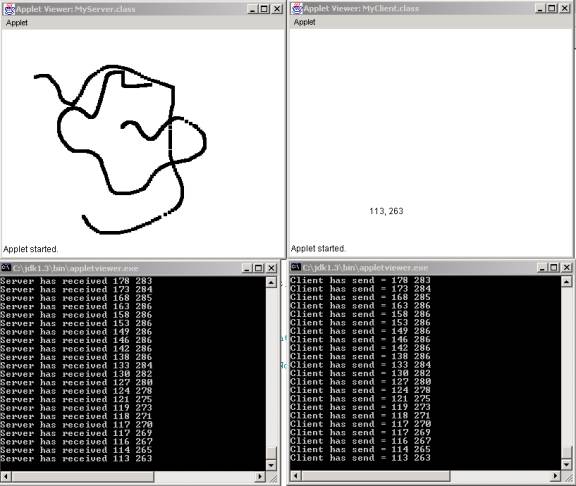
To run a client/server program we need to first run the server code to make sure that the server is up and waiting for clients and then we run the client. As the server is up and waiting for connections a client send a request that is received by the server and the communication process begins. Once the first connection is establish from a new client a continuous communication is established by repeatedly sending/receiving information allowing data to flow back and forth. In our example, the client is sending x and y mouse coordinates and the server is drawing on the screen a small 5x5 rectangle that uses the input coordinates to move in the server screen.
On the MyClient class we first establish a connection by giving the address of the server (in this case we use the address 127.0.0.1 which correspond to the computer itself). If we know the IP address of the server we can type it here instead of the local number. To find the address of a machine we go to the command line prompt and we type the command ipconfig:
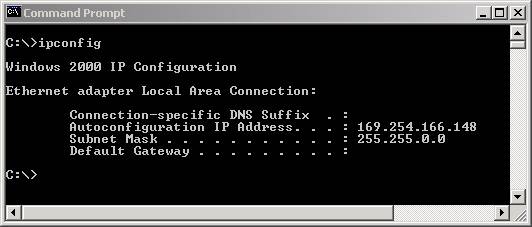
The number 5000 stands for the port where the data will be sent or received. You can have multiple ports at the same time since you communications with other servers at the same time can be multiple. We are only using one port, that is, that one numbered 5000.
Once we establish the connection with the server we create an output stream and send the data (that is the xout and yout mouse coordinates). In the MyClient class we use the sedData method that uses the output stream to send out data:
output.writeInt(xout);
output.writeInt(yout);
On the server side an almost similar process is going on except here we loop continuously receiving data. The server needs to be in a constant state of reception because it does not know when a request may come in. This is done through a Runnable continuous loop using a Thread object similar to the animation process we saw earlier. Once an input is received, through the statements:
xrect = input.readInt();
yrect = input.readInt();
The input integers are assigned to the xrect and yrect variables that are used in the paint method to draw a rectangle. The result of this whole process is shown below:
For more on the java network objects and methods look at the official java site at: