- Compiling/Running
Compiling is the process of transforming the source code (text) into a computer understandable version (not text). As we know computers are composed of transistors that hold information in the form of on/off switches. Therefore, a computer understandable version is a pattern of 0s and 1’s, which correspond to on/off switches. This version of the code is referred to as object code or, in the case of java, as class code. A .class is a file that is produced after a .java file is compiled. This process is done through the following command:
javac simple.java
[In Symantec Café this is done automatically by clicking on the “Rebuild All” button]
This command can be typed on the command prompt level (DOS window). But how does the system know the javac command? Well, javac is a command that comes after you install java on your computer. Lets suppose that you installed java2 (which you downloaded from Sun’s site http://java.sun.com ) in a directory called jdk1.2 in the c drive (which means that to refer to that directory you need to type c:\jdk1.2). The javac command (together with all the java commands) is in the directory c:\jdk1.2\bin. The reason why the system knows about that command (and we do not need to type the full path c:\jdk1.2\bin\javac) is because when java was installed, the installer modified our system’s path to include the jdk1.2 directory. This was done (and can be done again) by getting into your computer’s system by selecting Start-> Settings -> Control Panel and then System. In the window, select Advanced or Environment variables and you will see the Path parameter under the system’s variables area. You can edit and type the words c:\jdk1.2\bin ending with a semicolon (;) and no space from the previous or next word. What this means is that whenever you type a word on the prompt (i.e. javac), the system will look under the path directory (or directories) to see if there is something there with that name. If yes it will replace it with the long path (c:\jdk1.2\bin\javac) and execute it.
So really, for the system, we are typing the following command:
C:\jdk1.2\bin\javac simple.java
If we have more than one file we do the same for all. For example
javac MyPoint.java
javac MySegment.java
javac MyShape.java
or do a general
javac *.java
that will compile all java files in the current directory.
Since this is done on the command level, typing the javac command should look like this:
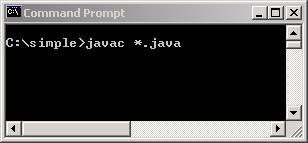
assuming you java files are inside the directory simple.
[For more on the syntax of javac visit the official java site at http://java.sun.com/products/jdk/1.2/docs/tooldocs/tools.html]
If we want to include classes that are in different directories (other than the current) such as C:\geometry\libs we need to use the –classpath option of the javac command. So if we have moved the class file MyPoint.class (after we compiled it) in the directory C:\ geometry \libs, and that class is used in our current project, lets say C:\morphing then to compile the new project we need to add to the javac command as follows:
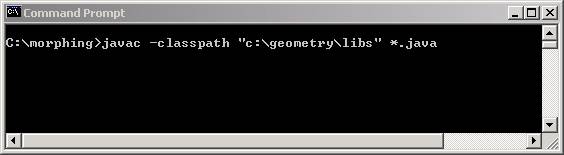
FYI: Mixing upper/lower case does not matter in the DOS command level
The above command means that it will compile all .java files in the current directory and will look for any other classes in the directory C:\project\libs. The syntax of classpath is the same at the path (seen earlier). So if we want to add multiple directories we separate each one with a semicolon (;). So to include two directories c:\geometry\libs and d:\control\guis we write
javac –classpath
“c:\geometry\libs;d:\control\guis” *.java
[For more on setting up the classpath visit the official java site at
http://java.sun.com/products/jdk/1.2/docs/tooldocs/win32/classpath.html]
26.1
Running as an applet in a browser (HTML)
If we want to run the class files produced after compilation we need a browser to provide the environment for them to run (that is why we extend Applet in the code). To do that we need to provide the browser with something it understands. Browsers understand a language called HTML (Hyper Text Markup Language) that has its own simple syntax.
HTML is source code and therefore it is text. Its general syntax is composed of commands (markups) that are included within “<” and “>”, for example <TITLE>.
Anything following the markup will be under the influence of that markup until a “</” is encountered (i.e. </TITLE>). So the general syntax of an HTML file is
<HTML>
<HEAD>
<TITLE>
Put
the name of the title
</TITLE>
</HEAD>
<BODY>
Put
the applet here
</BODY>
</HTML>
So the browser opens the file (above) and sees the <HTML> markup, which makes it understand that this file is an HTML file until the </HTML> markup is found. Anything in-between must be text or an HTML markup. Surely enough, the next markup is <TITLE> that makes it put on the browser window the title “Put the name of the title”, and that is in the <HEAD> section. In the next section (BODY) we put the applet.
Now there are many markups that you can use to do interesting things such as TABLE, FRAME, or FORM, but in our case the only markup we need is the <APPLET> one. That needs the name of the class and the width and height of the area to display it. So the following line would display our applet
<APPLET CODE=simple.class WIDTH=400
HEIGHT=300>
</APPLET>
Even though we are not specifying the other classes, the browser will include automatically all the other depended classes such as MyPoint, MySegment, etc. So our simple html file (above) can become:
<HTML>
<HEAD>
<TITLE>
Applet
Simple
</TITLE>
</HEAD>
<BODY>
<APPLET
CODE=simple.class WIDTH=400 HEIGHT=300>
</APPLET>
</BODY>
</HTML>
In fact, TITLE, HEAD and BODY are not necessary to run the applet. They just make the file more structured and add a title. So the bare essential HTML code to run and applet is simply:
<HTML>
<APPLET
CODE=simple.class WIDTH=400 HEIGHT=300>
</APPLET>
</HTML>
[In Symantec Café running an applet is done automatically by clicking on the “running man” button] [For more information on HTML look at http://www.w3.org (the current version of HTML is 4.0).]
26.2
Running as a Standalone Application
So far we have been using the browser to run our programs and that is why we used the java statement extends Applet:
public void simple extends
Applet {
If we want to run this applet as a standalone application, we need to do a few re-arrangements: First we need to change the above line to extend a window or a frame (which is a window with a title). That means that we need to type:
public void simple extends
Frame {
Then we need to create a new method in the class simple called main. Main is a reserved word in java that means that your program will start at this method within this class. So we need to create the main method and call the constructor of the class in it. Here is the code:
//***************************************
public static void
main(String args[]){
simple s = new simple();
}
The word static means that this is an unchanged method and the args[] is an array of arguments that can be passed from the operation system (we will talk about them later).
Now assuming we had an original applet like this:
import java.applet.*;
import java.awt.*;
public class simple extends Applet{
//*****************************************
public void paint(Graphics g){
g.setColor(Color.red);
g.drawRect(50, 50, 50, 50);
}
}
To convert it to an applet the code should look like this:
import java.awt.*;
public class simple extends Frame{
//*****************************************
public simple(){
super("My Frame");
setSize(400, 300);
show();
}
//*****************************************
public void paint(Graphics g){
g.setColor(Color.red);
g.drawRect(50, 50, 50, 50);
}
//***************************************
public static void main(String args[]){
simple s = new simple();
}
}
So, main is the starts the program by calling the constructor simple() which calls super() and then sets the size of the frame (window). The method super() is a java method that calls the constructor of the parent class (the one that simple extends). In this case, the parent class is Frame (since it is an extension) and the constructor of a frame is
new Frame(String title);
but instead we use
super(“My Frame”);
Since we simple is an extension of Frame, that means that it inherits all the Frame methods (and the parents of Frame methods, and so on) one of which is setSize(..) and show(). These set the size of the frame and show it on the screen (it is similar with what the <APPLET CODE=simple.class WIDTH=400 HEIGHT=300> was).
Now, if may want to run a java program as a standalone application (not through a browser) all we need is to type the command line:
java
simple
which really means C:\jdk1.2\bin\java simple (according to the path).
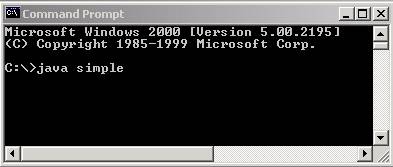
[In the case of Symantec Café we need to go into the Project->Settings… and change the Target Type to Application (instead of applet) and type just the word simple as the Main Class. Then recompile and run.]
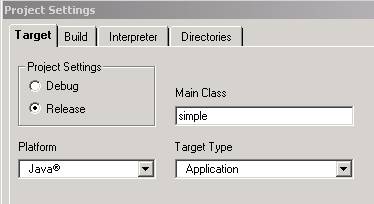
The above command (java simple) will assume you are trying to run the file simple.class (the word class is omitted), which was produced earlier through the javac command. This would work for a single file-class. When we work on projects we then have many classes, which are dependent on each other (such as MyPoint, MySegment, MyShape, etc.). The main one is the class simple. The java simple command will resolve the links between the other classes and will run without having to declare the location of all the other classes (which is not true in the javac command where we need to show the classpath and compile all the *.java files).
27. The jar command
The jar command (which is a java dos command same as javac and java) will compress a series of files into one with a .jar extension. To do it we simply type:
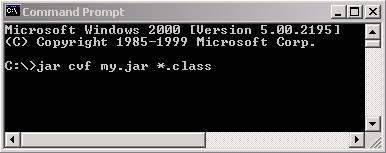
This means the following:
jar is the command
cvf means create a new file ( c), which will be called (f) and verbalize (type out) the output (v)
my.jar is the name of the jar file to create and
*.class is the files we want to jar (compress).
The command (when run in the same directory where the files are will produce a new file that looks like that:

and if you open it it will have all the class files compressed (same as a .zip file):
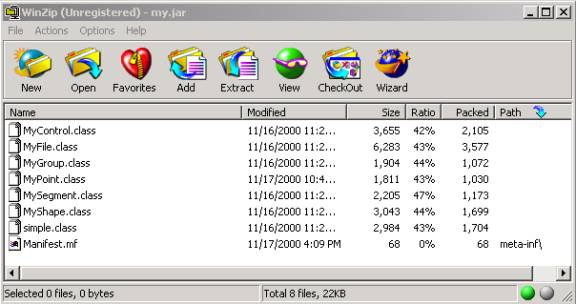
The Manifest.mf file (shown last) is an internal directory of all the compressed files.
[For more on the jar command visit the official java site at http://java.sun.com/products/jdk/1.1/docs/guide/jar/]
28.
The javadoc command
When we write it is always useful to write comments. Everybody have their own way of writing comments: some use //***** , others use /* .. */ and each one writes anything they think is useful to document the code. Java has developed a specific way of writing comments that will allow later a user’s manual to c created automatically. The format is simply start with a /** instead of a /*:
/**
* This is a comment
*
*/
Within that /** … */ area we can use the following symbols:
@author and then the name of the author(s)
@params and then the name and explanation of the parameters of a method
@return and then the explanation of the return value.
Here is the MyPoint code with this new comment style:
import java.awt.*;
/**
* Implements the behavior of a geometrical point
* @author Kostas Terzidis
*
*/
public class MyPoint {
double x, y; // members
of class
/**
* Creates a point given two coordinates
* @param xin The x coordinate.
* @param yin The y coordinate.
*/
public MyPoint(double xin, double yin){
x = xin;
y = yin;
}
/**
* The purpose of this method is to ...
* @param param1 The value to test for ...
* @return A boolean value that tells whether or not ...
*/
public void randomize(double range){
x += range * Math.random();
y += range * Math.random();
}
}
If we create an empty folder called “docs” and type the javadoc command which is:
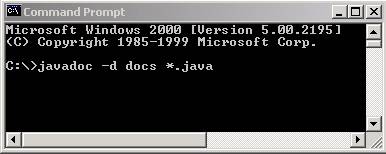
The –d stands for “put everything in the docs folder”.
After done, if we open the docs folder we will see a series of newly generated html files and if ru the index.html one we will see a very elaborate user manual (or Application Programming Interface API) of our MyPoint class:
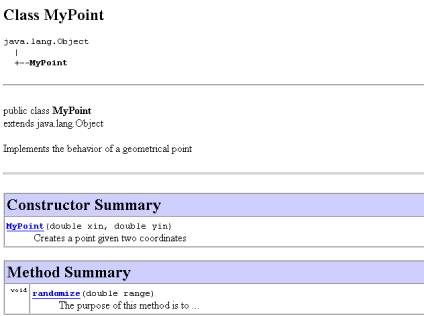
Try it. It is a good way to document, organize, and disseminate the information we are producing. [For more details on how to write comments for javadoc visit the official java site: http://java.sun.com/j2se/javadoc/writingdoccomments/index.html]