11. 2D Graphics
Simple Examples
11.1. Red
Rectangle
In the following code we will draw a red rectangle on the screen. The code (in a file called simple.java) is as follows:
import java.applet.*;
import java.awt.*;
public class simple extends Applet{
public void paint(Graphics g){
g.setColor(Color.red);
g.drawRect (50,50, 100,200);
}
}
The code needs two libraries to run (applet and awt). Applet contains information about applets (since we want run the program as an applet and not as an application) and awt (which stands for abstract window toolkit) contains information about drawing inside a window (in this case about Graphics). So we use the command import to tell where these libraries are (that is under the JDK folder under the directory java/applet/*). These libraries may be packed in a zip or a jar file called classes.zip or rt.jar (depending on the version of java) but java knows where to go and get them (so there is nothing for you to worry about).
Once the libraries are introduced a class needs to be defined which in done with line:
public
class simple extends Applet{
which open with a { and closes with a }. The java word public tells that we have access to this class from outside the file simple.java. The name simple is a name that I gave to call the class and has to be the same as the name of the file. The java word extends tells us that this class is an extension of an applet and therefore all applet commands are available to this class.
After we defined the class simple we need to do something with it (we set out to draw a red rectangle, remember?). So the line
public void paint(Graphics
g){
which starts with { and ends with } is a public method (means that it can be accessed from outside the file) and its name is paint. Now paint is a reserved java word for a method that paints and it takes as parameters the object g of type Graphics, which is the screen. Given the g object we can call any of the methods that belong to Graphics (they can be found in the java JDK documentation). Two of them are the following:
g.setColor(Color.red);
g.drawRect (50,50, 100,200);
The first one setColor sets the color to red. Color is another java object and takes red as a parameter. And finally drawRect is another Graphics method that need for parameters (the x and y position of the rectangle and its width and height.
After we finish writing the code simple.java we need to write a simple HTML file that will call the applet from within the browser. That code is:
<HTML>
<APPLET CODE=simple.class WIDTH=400
HEIGHT=300>
</APPLET>
</HTML>
The code is inside a file called program1.html (it does not have to be the same name) and it contains two commands: <HTML> which tell the browser that this is an HTML file and <APPLET> which tell the browser the code name and location and the applet’swidth and height.
After compiling simple.java we produce the file simple.class which we put in same directory where program1.html resides and then we open program1.html with a browser. The result is:
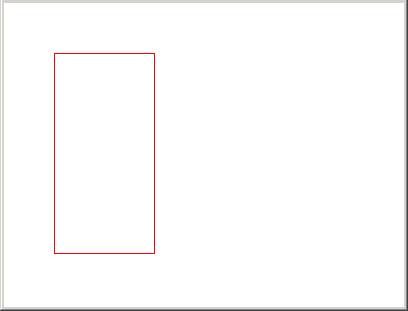
which is an applet 400x300 with a red rectangle at position 50,50 of size 100x200.
11.2.
Feedback
To the previous code in simple.java we will add one more method:
import java.applet.*;
import java.awt.*;
public class simple extends Applet{
//*****************************************
public void paint(Graphics g){
g.setColor(Color.red);
g.drawRect (100,100, 100+i,100+i);
}
//*****************************************
public boolean mouseDrag(Event e, int x, int y){
System.out.println("x = " + x + " y= " +
y);
return true;
}
}
The two //**** lines are just comment lines for aesthetic purposes.
The new method is:
public boolean mouseDrag(Event e, int x, int y){
which is called mouseDrag and is of type Boolean. MouseDrag is another reserved java method used for returning the x and y positions of the mouse as we drag. It takes three parameters: and event and the two mouse coordinates. Since this method is a boolean it needs to return a true/false condition and the line
return true;
takes care of it. A true/false condition can occur when something during the flow of the program may go wrong (such as memory failure, or out of screen) and then it will return a false. But we assume everything will go fine and we return true.
The following line:
System.out.println("x
= " + x + " y= " + y);
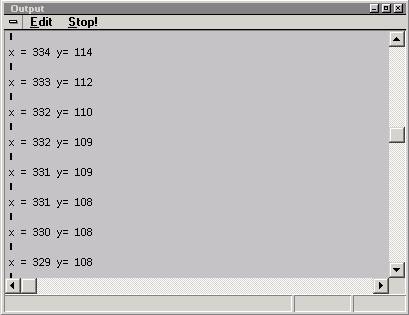
prints x and y to the output window. This is another java object called System which has another sub-object called out which supports a method called println (for printl line). Inside that method we pass strings and variable separated by a +. So “x = “ is a string, x is a variable, “ y = “ is a string and y is a variable. When we run the program we see the different values that x and y return as we drag the mouse.
11.2.
Use of Feedback
In the following example we will use the feedback from the previous example to move the red rectangle as we drag the mouse on the screen. The code is as follows:
import java.applet.*;
import java.awt.*;
public class simple extends Applet{
int xpos = 0;
int ypos = 0;
//*****************************************
public void paint(Graphics g){
g.setColor(Color.red);
g.drawRect (xpos,ypos, 100,200);
}
//*****************************************
public boolean mouseDrag(Event e, int x, int y){
System.out.println("x = " + x + " y= " +
y);
xpos = x;
ypos = y;
repaint();
return true;
}
}
In this example we introduced two new variables xpos and ypos in the statement:
int xpos = 0;
int ypos = 0;
Those we put outside the two methods paint and mouseDrag so they are visible to both.
Those variables are initially 0 but in the mouseDrag method we assign them the values of x and y (that is the mouse position) with the statement:
xpos = x;
ypos = y;
which we then use in the paint method as the variable positions of the rectangle.
g.drawRect
(xpos,ypos, 100,200);
The method repaint() is a java reserved word for calling the paint(Graphics g) method. (we cannot call paint(g) because we do not know g. So we use repaint that has no parameters).
If you run the code the rectangle will move as you drag the mouse (and the x y positions will be printed as well).
11.3.
Introducing Randomness
In the following code we introduce a java mathematical class used to create a random number between 0.0 and 1.0. The method is random() and belongs to the class called Math. I always returns a double number (between 0. and 1.). So if we want to create a random integer number between 0 and 100 we need the write the following line of code:
int
myRandomNumber = (int) (Math.random() * 100.);
First we calculate Math.random() by 100 to get a number between 0.0 and 100.0 and then we cast the double number to an integer using the (int) operation. Then we assign it to the integer variable myRandomNumber. In general we can cast any type into any other one.
So the introduction of a random disturbance of color is shown below:
public class
simple extends Applet{
//*****************************************
public
void paint(Graphics g){
int size
= 20;
for(int
x=0; x<50; x++){
for(int y=0; y<40; y++){
int
red = (int)(Math.random()*255.);
int
green = (int)(Math.random()*255.);
int
blue = (int)(Math.random()*255.);
Color c = new Color(red, green, blue);
g.setColor(c);
g.fillRect(x*size, y*size, size, size);
} // for y
}
// for x
} // paint method
} // class
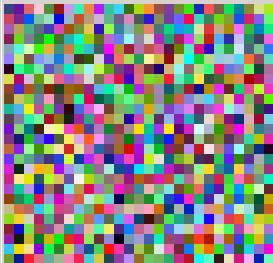
In this code we produce random colors by creating random red, green, and blue variables through the statements:
int
red = (int)(Math.random()*255.);
int
green = (int)(Math.random()*255.);
int
blue = (int)(Math.random()*255.);
which we then assign to create a color and the set the graphics to that color.
Color c = new Color(red, green, blue);
g.setColor(c);
The two loops shown above allow us to draw rectangle in both the x and the y direction. What we do is to loop first using a counter variable called x that goes for 0 to 50 and then loop again (within the first loop) using a counter variable called y that goes for 0 to 40. That mean that x and y are changing within the two loops and are assigning positions to the rectangles through the statement:
g.fillRect(x*size, y*size,
size, size);
The result is the following:
12.
The Graphics Class
Graphics is the java language class is used to draw graphics on the screen. After getting it through the method paint:
public
void paint(Graphics g) {
We then can call any of the following methods:
setColor (Color);
for
example: setColor (Color.red); or
setColor (new Color(255,0,0));
//0-255 for Red, Green, Blue
setFont(Font);
for
example: setFont(new Font("TimesRoman", Font.ITALIC, 16);
drawLine (x1,y1,x2,y2);
for
example: drawLine (100,100,200,200);
drawString (String,x,y);
for
example: drawString ("any text",100,100);
drawRect (x,y,width,height);
for
example: drawRect (50,50,100,200);
fillRect (x,y,width,height);
for
example: fillRect (50,50,100,200);
drawRoundRect
(x,y,width,height,cornerwidth,cornerheight);
for
example: drawRoundRect (50,50,100,200,10,10);
fillRoundRect
(x,y,width,height,cornerwidth,cornerheight);
for
example: fillRoundRect (50,50,100,200,10,10);
draw3DRect (x,y,width,height,braise);
for
example: draw3DRect (50,50,100,200,TRUE); //raised rectangl
draw3DRect
(50,50,100,200,FALSE); // indented
rectangle
drawOval (x,y,width,height);
for
example: drawOval (50,50,100,200);
fillOval (x,y,width,height);
for
example: fillOval (50,50,100,200);
drawArc (x,y,width,height,startAngle,arcAngle);
for
example: drawArc (50,50,100,200,0,90);
fillArc (x,y,width,height,startAngle,arcAngle);
for
example: fillArc (50,50,100,200,0,90);
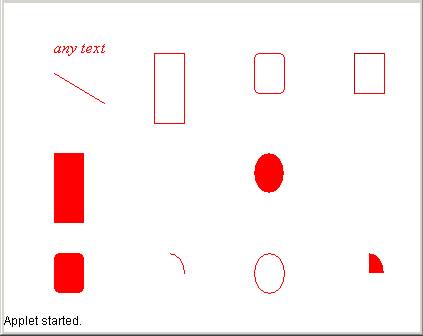
The following code allows you to show a series of shapes according to the Graphics methods that we call:
import java.applet.*;
import java.awt.*;
public class
simple extends Applet{
//*****************************************
public
void paint(Graphics g){
g.setColor(new Color(255, 0, 0));
g.setFont(new Font("TimesRoman", Font.ITALIC, 16));
g.drawString ("any text",50,50);
g.drawLine (50,70,100,100);
g.drawRect (150,50,30,70);
g.fillRect (50,150,30,70);
g.drawRoundRect (250,50,30,40,10,10);
g.fillRoundRect (50,250,30,40,10,10);
g.draw3DRect
(350,50,30,40,false);
g.drawOval (250,250,30,40);
g.fillOval (250,150,30,40);
g.drawArc (150,250,30,40,0,90);
g.fillArc (350,250,30,40,0,90);
}
}
which results in the following applet:
13.
Follow-the-mouse
text
In the following example we will demonstrate a feedback system that make use of arrays to store characters drawn to the screen.
import java.applet.*;
import java.awt.*;
public class
simple extends Applet{
// initial
variables and data
int
numpoints = 20;
int[]
lastxPoints = new int[numpoints];
int[]
lastyPoints = new int[numpoints];
//*****************************************
public
void paint(Graphics g){
for(int i=0; i<numpoints; i++)
g.drawString("a", lastxPoints[i],lastyPoints[i]);
}
//*****************************************
public
boolean mouseMove(Event e, int x, int
y){
//
entee the first element in the array with x and y
lastxPoints[0] = x;
lastyPoints[0] = y;
//
shift the array one-by-one starting from the end
for(int i=0; i<numpoints-1; i++){
lastxPoints[numpoints-1-i] = lastxPoints[numpoints-2-i];
lastyPoints[numpoints-1-i] = lastyPoints[numpoints-2-i];
}
repaint();
return
true;
}
}
First we introduce two integer arrays to hold the x and y positions of the mouse up to 20 (numpoints) positions. This is accomplished with the following statements:
int
numpoints = 20;
int[]
lastxPoints = new int[numpoints];
int[]
lastyPoints = new int[numpoints];
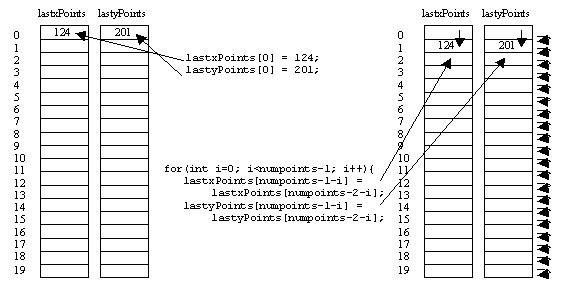
Notice that these variables are put outside both paint and moveMouse methods so that they are “visible” to both methods. Then we moveMouse (instead of dragMouse) which is another basic java method for handling simple mouse movement (a opposed to dragging). Inside the moveMouse method we do two things: we set the first element to x and y through the statements:
lastxPoints[0] = x;
lastyPoints[0] = y;
and then we shift the whole array by one position forward. That is accomplished by copying the data of one position to the next one. We also start from the end towards the beginning because we do not want to overwrite the data as we copy (think of the opposite way). Here is what is going on (graphically):
After shifting the array we can draw the string “a” using the following statement in the paint method:
for(int i=0; i<numpoints; i++)
g.drawString("a", lastxPoints[i],lastyPoints[i]);
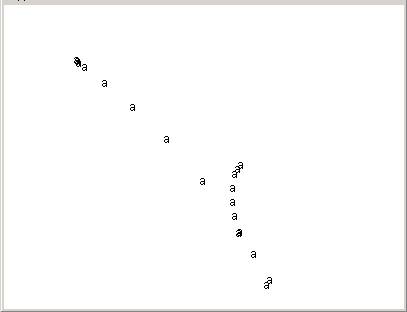
which means that every time we call paint we loop 20 times and draw the string “a” at the last 20 positions.
Here is the applet:
14.
Follow-the-mouse random text with random colors
To create the same effect of moving text but with random text of random colors we use the Math.random() java method in the following way:
import java.applet.*;
import java.awt.*;
public class
simple extends Applet{
// initial
variables and data
int
numpoints = 20;
int[]
lastxPoints = new int[numpoints];
int[] lastyPoints = new int[numpoints];
String
abc = "qwertyuiopasdfghjklzxcvbnm";
//*****************************************
public
void paint(Graphics g){
for(int i=0; i<numpoints; i++){
int
rand = (int)(Math.random()*26);
String s = abc.substring(rand, rand+1);
int red = (int)(Math.random()*255);
int green = (int)(Math.random()*255);
int blue = (int)(Math.random()*255);
g.setColor(new Color(red,green,blue));
g.drawString(s, lastxPoints[i],lastyPoints[i]);
}
}
//*****************************************
public
boolean mouseMove(Event e, int x, int
y){
//
entee the first element in the array with x and y
lastxPoints[0] = x;
lastyPoints[0] = y;
//
shift the array one-by-one starting from the end
for(int i=0; i<numpoints-1; i++){
lastxPoints[numpoints-1-i] = lastxPoints[numpoints-2-i];
lastyPoints[numpoints-1-i] = lastyPoints[numpoints-2-i];
}
repaint();
return
true;
}
}
First we introduce a String with 26 random characters called abc. Then when we draw the text we first make up a random integer number between 0 and 26 through the statement:
int rand =
(int)(Math.random()*26);
Then we use the java method of String called substring which needs an starting and an ending position to create a substring. We pass the random number rand as the starting position and the a number rand+1 as the ending position, thus extracting a string of just one character. That String we pass to the g.drawstring method.
As of the random colors you should already be familiar with the random color generator described in section 11.3 earlier.