1. Zipping files
WinZip is an application that compresses a series of files and/or folders into a single file with .zip extension. To zip a set of files, put them in a folder and then zip the folder. The application winZip looks like this:

Example:
Suppose you want to zip a series of projects such as the following:
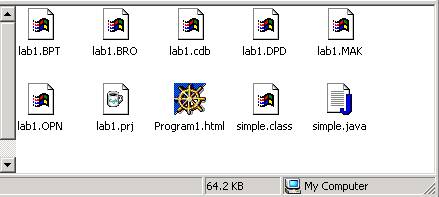
First we put them in a folder (lets call it simpleFolder simple is the name of the project):

Then we open winzip. You should see something like this:
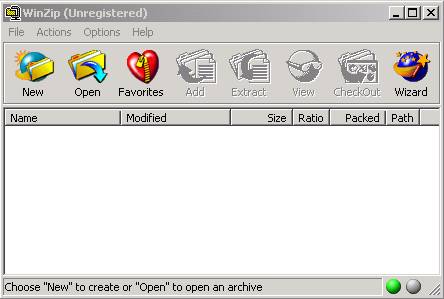
Choose New icons (as shown above) and select a folder to create a zip file and a name (I wrote simple.zip)
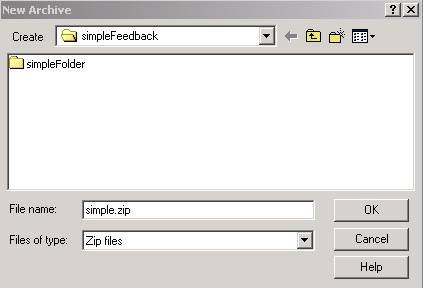
The select OK and in the following window select all the files you want to include:
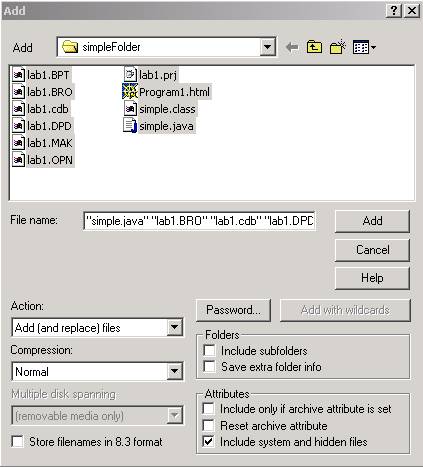
Select Add and and you should see your files included in the zip directory:
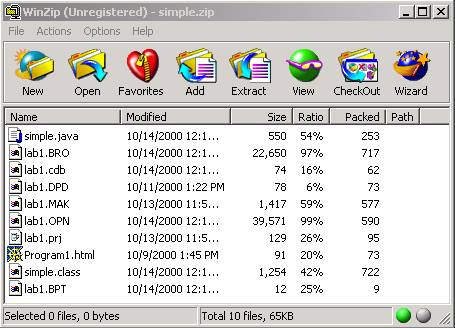
Exit the window and you should see a new file called simple.zip in your directory

This contains all the project files, which can be extracted by simply double-clicking on the zip file.
2. Extracting the files for a .zip
If you double-click you should see the following window:
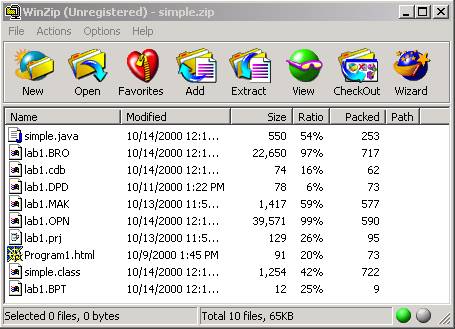
Click on the Extract button (shown above) and you will be presented with a window:
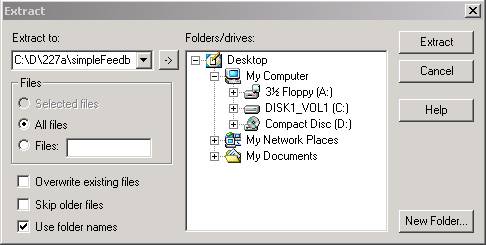
Select the directory where you want the zipped files to be extracted.