Introduction to Computers
Creating transparency
Capturing the images:
Take a picture of a tree, scan it and save it as .tiff or .jpg or
If you download it from the internet it will most likely be of a .jpg format
Take a video and capture a frame with the image of the building.
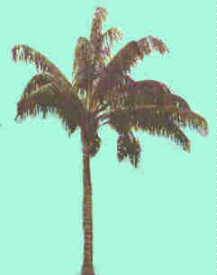
Open the image in photoshop.
Editing the Image
Select the magic wand  and click on the cyan background to
select the background.
and click on the cyan background to
select the background.
Invert the selection to capture only the tree area (Select->Inverse)
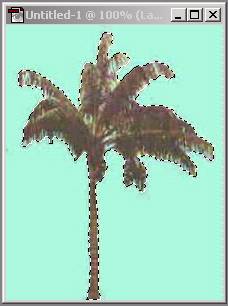
Bring up the Channels window (Window->Show Channels)
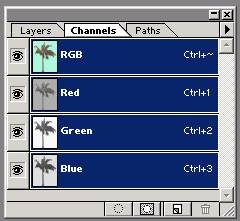
Select the “Save selection as Channel”  command on the lower part of the
Channels window.
command on the lower part of the
Channels window.
After selecting the Channels window should look like this:
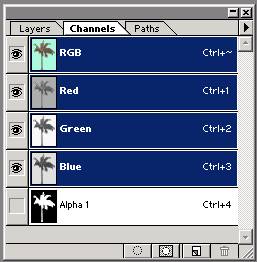
A new alpha channel is produced (black is transparent)
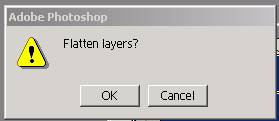
Go to Image->Mode->Index Color and select OK for the layer flattening.
Save the file as a gif. That is, File->Export GIF89a Export… and you will see:
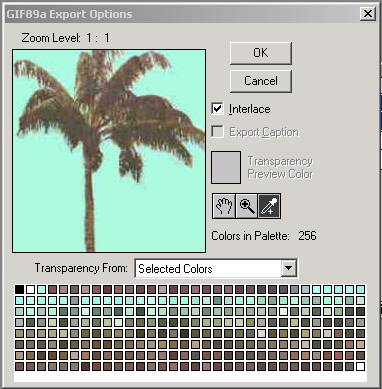
Select the Alpha1 channel in the “Tranparency From:” pull-down option.
Give it a name and your done.